
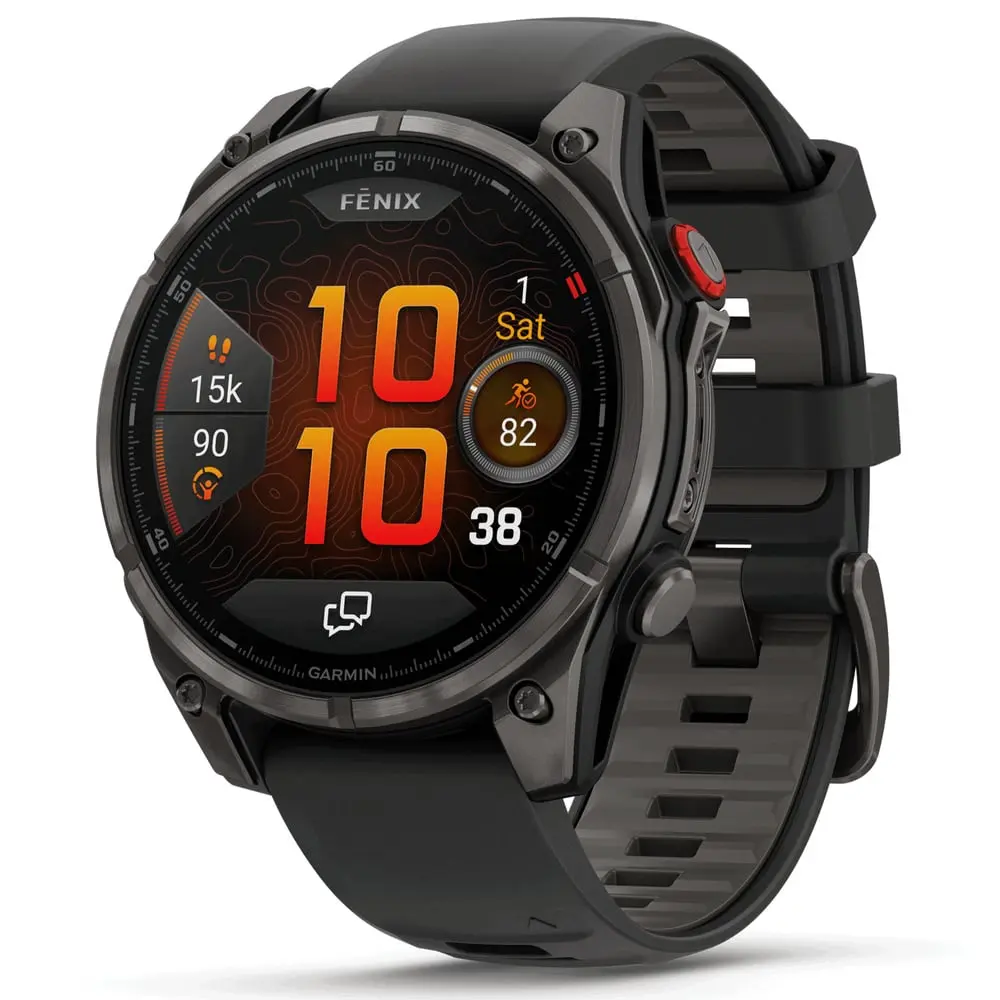
You spent serious money on a high-end Garmin. Now you’re charging it every few days. Sound familiar?
I was in the same boat. My Fenix was giving me three, maybe four days. For a tool that’s supposed to be reliable on multi-day adventures, that’s a joke.
So I spent six months testing every setting, every mode, every supposed trick. I went through forums, firmware updates, and factory resets. I measured, compared, and threw out anything that didn’t hold up in the field.
This guide is the result. No spec-sheet copy-pasting. No “up to” claims. Just what actually works, whether you’re running a Fenix 8, an Enduro 3, a Forerunner 965, or any of the AMOLED models.
Let’s fix your battery problem.
The offenders: what’s actually killing your watch
Offender #1: Pulse Oximeter
Let’s get this out of the way first, because it’s the single biggest battery killer on any Garmin watch. 24/7 Pulse Ox is a gimmick for 99% of users. It murders your battery, and the data is questionable at best.
I tested it against a medical-grade oximeter. My medical device read 99%. The watch read 95%. That’s not a rounding error. That’s unreliable.
But the battery impact? That’s where it gets criminal.
| Setting | Battery life |
|---|---|
| 24/7 Pulse Ox ON | 5-8 days |
| Pulse Ox during sleep only | 12-15 days |
| Pulse Ox OFF (manual only) | 19-21 days |
That’s a 3x improvement just by turning off one feature. On the Instinct 2 series, users report going from 4 days with All Day Pulse Ox to 20+ days with it set to Manual. The pattern holds across every model.
Do this now: Go to Sensors & Accessories > Pulse Oximeter and set it to Manual Only. If you really want sleep data, set it to During Sleep as a compromise. But never leave it on All Day.
The other culprits
Pulse Ox is the biggest offender, but it’s not working alone. Here’s what else is quietly draining your battery in the background:
- Always-On Display (AMOLED models): This cuts your battery life in half. Sometimes more. If you own a Forerunner 965 or Fenix 8 AMOLED, this is the trade-off you signed up for. We’ll get into this later.
- WiFi: When it’s on, it’s constantly hunting for networks. A slow, steady drain that adds up. Turn it off when you’re not actively syncing.
- Animated watch faces: That sweeping second hand looks great. It also forces the processor to wake constantly, costing you days of battery. Use a static face. Better yet, stick with a built-in Garmin face rather than a Connect IQ download. Native faces are compiled into machine code that the processor runs directly, while Connect IQ faces use Monkey C and need more processor cycles.
- Garmin Pay: If you don’t use it, remove it entirely. Garmin Pay keeps the optical heart rate sensor active for wrist detection, creating a constant background drain.
- External sensors: The data here is mixed. Some users report that an external heart rate strap saves battery by letting you turn off the optical sensor. Others see increased drain from the ANT+ connection. Test both for your setup.
Taming the beast: daily use settings that actually matter
You need a baseline. A daily driver profile that’s functional but efficient. After months of tweaking, here’s the setup that gives me maximum battery without making the watch useless.
The optimized daily driver profile
Open your Power Manager and set the following:
| Setting | Value | Why |
|---|---|---|
| Display brightness | 5% | Perfectly visible in almost all conditions. The jump from 5% to 10% costs more battery than you’d expect. |
| Timeout | 4 seconds | The default 8 or 15 seconds is wasted energy. You glance at your watch, you don’t study it. |
| Gesture backlight | After Sunset | Game-changer. You don’t need the backlight during the day. This alone saves meaningful battery. |
| Touchscreen | Off | If your watch has buttons, use them. This buys you at least two extra days. |
Notifications strategy
Your watch is not your phone. Treat it as a filter.
Keep: Calls, texts, calendar alerts. The essentials that actually need your attention.
Disable: Everything else. Email, social media, news apps. Every notification buzzes the motor, lights the screen, and wakes the Bluetooth connection. Multiply that by dozens of notifications per day and you’ve got a real drain.
The built-in Battery Saver mode
Most users don’t even know this exists. Go to Settings > Power Manager > Battery Saver.
This mode automatically optimizes a bunch of settings at once:
- Switches to a low-power watch face
- Disables music streaming
- Reduces phone connectivity
- Turns off WiFi
- Limits wrist heart rate monitoring
- Disables always-on display
- Drops brightness
The best part? You can customize each setting individually. So you can keep heart rate monitoring but disable everything else. It’s surprisingly flexible.
Smart recording interval
This is a hidden gem. In your system settings, switch from “Every Second” recording to “Smart” recording. Smart recording reduces the frequency of data points during steady-state activities without losing meaningful information. During intervals or pace changes, it still records frequently. During a steady jog? It saves power.
Expect a free 10-15% battery improvement for most activities. There’s almost no downside for recreational athletes.
Activity tracking toggle
If you don’t care about daily step counting, floors climbed, or stress monitoring, turn off all-day activity tracking entirely. Navigate to Settings > Activity Tracking > Status > Off. This frees up the accelerometer and other sensors from running 24/7.
Power Manager: the secret weapon most users ignore
The Power Manager is the most underused feature on every Garmin. It lets you create custom power profiles for different situations. Think of it as driving modes for your watch.
Custom power modes worth creating
Max Battery Mode: GPS-only with UltraTrac. All sensors disabled except GPS. Perfect for multi-day hikes where you just need basic breadcrumb tracking and want the watch to last the entire trip.
Jacket Mode: Disables wrist heart rate (useless over a sleeve anyway). Keeps GPS and other sensors active. Pair it with an external heart rate strap like a Garmin HRM-Pro Plus for winter sports.
Navigation Mode: Optimized for following routes. Reduces recording frequency but keeps maps and navigation fully functional. Great for bikepacking or trail running where you need the map more than precise pace data.
UltraTrac: the nuclear option
For ultra-long activities, UltraTrac is a lifesaver. It records GPS points less frequently and fills the gaps with accelerometer data. Accuracy takes a hit. But a slightly wobbly GPS track is infinitely better than a dead watch at mile 80.
On some models, UltraTrac extends tracking time to 100+ hours. Access it via Activity Settings > GPS > UltraTrac.
The Resume Later trick
Taking a long lunch break during a hike? Don’t leave the activity recording. Use “Resume Later” instead. This puts the watch into a low-power state while preserving your activity data. When you’re ready to go, just resume. Your stats stay intact and you didn’t burn GPS battery during your two-hour picnic.
GPS and activities: where it really counts
The GPS myth: you don’t need multiband
Everyone enables “All Systems + Multiband” thinking it’s the best. It’s not. For most situations, it’s overkill and a battery disaster.
I ran a 100-mile coastal ultra to test this. Here’s the reality check based on Garmin’s own data for the Fenix 7X:
| GPS mode | Battery life | Best for |
|---|---|---|
| GPS Only | Up to 89 hours | Roads, open trails, most conditions |
| All Systems | Up to 58 hours | Mixed urban/trail environments |
| All Systems + Multiband | Up to 36 hours | Deep canyons, dense forest, skyscrapers |
GPS-only is perfectly adequate for almost all roads and trails. That should be your default. Save multiband for when you’re navigating through a dense forest with steep cliffs on both sides.
SatIQ: the smart choice you should actually use
If you have a Fenix 7 Pro, Fenix 8, or Enduro 3, you have access to SatIQ (also called AutoSelect). This is the feature most people should be using.
Here’s how it works: SatIQ monitors your environment in real-time. When you’re running through open terrain, it uses GPS-only. When it detects signal interference from trees, buildings, or cliffs, it automatically switches to multiband. The moment conditions improve, it drops back to save power.
According to Garmin’s own engineers, multiband is only needed about 15% of the time during a typical activity. Without SatIQ, you’d have multiband burning battery 100% of the time to fix a problem that exists 15% of the time. With SatIQ, you get near-perfect accuracy while only paying the battery cost when it matters.
Set your GPS mode to “AutoSelect” or “SatIQ” and forget about it.
The music problem
Streaming music from your watch to Bluetooth headphones during a long activity is a terrible idea. The numbers are brutal.
On a 6-hour bike ride:
- With music: Battery went from 70% to 15% (55% drain)
- Without music: Battery went from 70% to 55% (15% drain)
That’s nearly 4x the drain. The Bluetooth audio streaming hammers the battery. Use your phone for music. The watch is for tracking.
AMOLED vs. MIP: the display decision that defines your battery life
This is the most important decision you’ll make when buying a Garmin. It’s not about which watch looks better on your wrist. It’s about what kind of user you are.
How the displays work
AMOLED (found on the Fenix 8 AMOLED, Forerunner 965, and former Epix line) produces vivid colors and deep blacks. But every lit pixel needs constant power. When the always-on display is running, there’s a permanent battery drain.
MIP (Memory-in-Pixel) (found on the Fenix 8 Solar, Enduro 3, and Instinct 2X Solar) is the opposite. Each pixel remembers its state. Power is only used when pixels change. The result? A display that’s always on but barely sips battery. It looks better in direct sunlight too.
The trade-off is clear: AMOLED models have approximately 40% less battery life than their MIP counterparts.
The AMOLED reality
You bought the pretty screen. You need to accept the consequences.
| AMOLED setting | Battery life (Fenix 8 47mm) |
|---|---|
| Always-On Display ON | 6-10 days |
| Always-On Display OFF | 16-18 days |
| Always-On + Pulse Ox | 4-6 days |
With always-on display, you’ll be charging about once a week. Turn it off and you can push to 16+ days, but then you’ve lost the main reason you bought an AMOLED watch.
For endurance athletes: This is where the compromise bites hardest. The Forerunner 965 gets about 25-30 hours of GPS time. That’s cutting it dangerously close for a 100-mile race, a distance its MIP predecessors handled with hours to spare.
The Garmin lineup: which watch for which user
| Watch | Display | Smartwatch battery | GPS battery | Best for |
|---|---|---|---|---|
| Fenix 8 Solar 51mm | MIP + Solar | Up to 48 days | Up to 89 hours | All-round adventurers who want maximum battery |
| Fenix 8 AMOLED 47mm | AMOLED | 16-18 days (real-world) | Up to 48 hours | Users who want the best display and accept charging weekly |
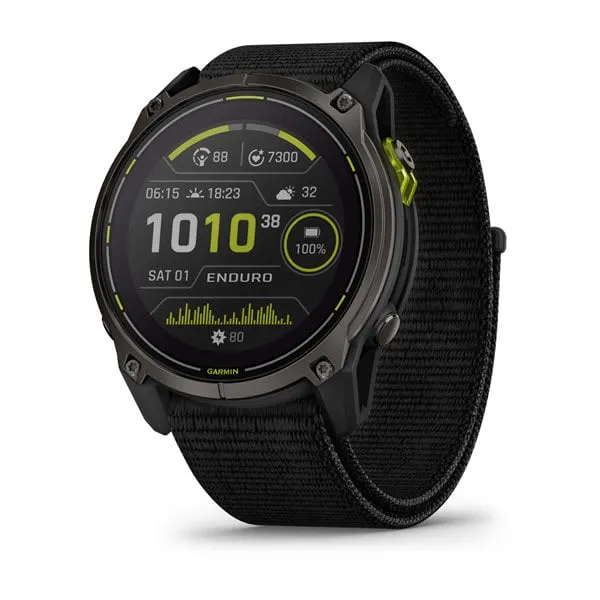
| Enduro 3 | MIP + Solar | 36-90 days | Up to 120 hours | Ultra-endurance athletes, thru-hikers |
| Forerunner 965 | AMOLED | ~13 days | Up to 31 hours | Road runners, triathletes |
| Forerunner 265 | AMOLED | ~13 days | Up to 24 hours | Budget-conscious runners |
| Instinct 2X Solar | MIP + Solar | Unlimited (solar) | Up to 145 hours | Best value for rugged outdoor use |
Solar charging: does it actually work?
This is a question I get constantly. The short answer: it depends entirely on your lifestyle.
Garmin measures solar effectiveness at 50,000 lux for 3 hours per day. That’s roughly direct sunshine on a clear day with your watch face pointed at the sky. In those conditions, solar makes a serious difference.
But in the real world? Results vary wildly.
When solar is worth it
- Thru-hiking and outdoor work: If you spend hours per day in direct sunlight, solar can add days or even weeks of battery life. Independent testers hiking above tree line with the Instinct 3 Solar reported ending the day with more battery than they started with. The watch was actually gaining charge.
- The Enduro 3: With its larger solar panel and efficient MIP display, real-world users report 30-45 days of smartwatch use in mixed conditions. That’s without any special effort to keep the watch in sunlight.
- The Instinct 2X Solar: Garmin claims “unlimited” battery life in smartwatch mode with enough sun. Users in sunny climates confirm this is achievable.
When solar is overhyped
- Office workers: If you’re indoors most of the day, solar adds almost nothing. Maybe a day or two over a full charge cycle.
- Cloudy climates: Overcast skies provide a fraction of the lux needed. Don’t buy solar thinking it’ll save you in Scandinavia in November.
- Worn under a sleeve: Solar can’t charge what it can’t see. If your watch is under a jacket or long sleeve most of the time, the solar panel is decoration.
Bottom line: If you spend a lot of time outdoors in sunny conditions, solar is a genuine feature. If you’re mainly indoors, save the money and get the non-solar version.
How Garmin stacks up against the competition
Garmin isn’t the only option if battery life is your priority. Here’s an honest comparison.
| Watch | Smartwatch battery | GPS battery | Notes |
|---|---|---|---|
| Garmin Enduro 3 | 36-90 days | 120 hours | Best Garmin for battery. Solar extends this further. |
| COROS VERTIX 2S | Up to 50 days | Up to 120 hours | Matches Garmin on battery, often beats it at lower price tiers. |
| COROS PACE 3 | ~24 days | ~38 hours | Strong battery at a much lower price point. |
| Suunto Race | Up to 12 days | Up to 40 hours | AMOLED display. Good but not class-leading battery. |
| Apple Watch Ultra 2 | 36 hours | ~12 hours GPS | Not even in the same conversation for endurance use. |
COROS consistently offers 20-50% better battery life than Garmin at the same price tier. If battery is your absolute top priority and you can live without Garmin’s ecosystem, COROS is worth a serious look.
That said, Garmin’s software, mapping, training features, and third-party app ecosystem are still ahead. And with solar models like the Enduro 3 and Fenix 8 Solar, Garmin closes the battery gap significantly.
When it all goes wrong: the reset protocol
Sometimes your battery tanks out of nowhere. You haven’t changed any settings. You haven’t started a new activity. The watch just started dying faster.
This is usually a software issue. Here’s what to check.
Common causes
- A stuck background process: The most common culprit. A simple restart fixes it.
- A corrupted satellite file: Your watch downloads satellite pre-cache files (CPE/EPO) to speed up GPS lock. Sometimes these corrupt and cause the GPS chip to work overtime.
- A bad Connect IQ watch face or app: Third-party apps can have memory leaks or bugs that run up battery usage.
- A firmware bug: This is real. In late 2025, Epix Gen 2 users discovered a confirmed bug where the backlight process was running 24/7, even with always-on display disabled. It was incrementing the backlight counter by exactly 3,600 seconds every hour. Garmin later patched this.
Troubleshooting steps (in order)
- Restart the watch. Power off, wait 10 seconds, power on. This clears stuck processes.
- Sync your watch. Connect to Garmin Express on a computer or Garmin Connect on your phone. This downloads fresh satellite files and may push a firmware fix.
- Remove third-party watch faces and apps. Switch to a built-in Garmin watch face for a few days. If battery normalizes, one of your Connect IQ apps was the problem. Add them back one at a time to find the culprit.
- Check the Battery Manager widget. If you’re running a 2026 firmware, Garmin added a new Battery Manager Glance widget that shows exactly which components (GPS, HR sensor, display, LTE) are draining your battery over the last 14 days. It’s incredibly useful for diagnosing mystery drains.
- Check your Power Manager settings. Make sure Battery Saver mode hasn’t been accidentally disabled or that a high-power mode isn’t still active from a previous activity.
The nuclear option: factory reset
If nothing else works:
- Sync with Garmin Connect to back up your data
- Perform a factory reset
- Set it up as a new device. Do not restore from backup. Restoring can bring back the exact problem you’re trying to fix.
- Add settings and watch faces back one by one, monitoring battery drain between each change
I know this is annoying. But I’ve seen it fix “unfixable” battery problems more times than I can count.
A note on firmware updates and battery
Garmin firmware updates are a double-edged sword. They add features and fix bugs, but they can also introduce new battery issues. This is a pattern across the Fenix 6, 7, and 8 series.
After every firmware update:
- Fully charge your watch
- Sync it with Garmin Connect
- Do a restart
- Watch the battery drain over one full cycle before panicking
The first day or two after an update often shows increased drain as the watch re-indexes data and downloads new satellite files. Give it 48 hours before concluding something is wrong.
If drain is still abnormal after two days, check the Garmin forums for your specific firmware version. You’re probably not alone, and a hotfix is likely on the way.
The 5-minute fix: your complete checklist
Here’s everything in one place. Do the essentials first. Come back for the advanced optimizations when you’re ready.
Essential settings (do these now)
- Turn off Pulse Ox (set to Manual or During Sleep)
- Enable Battery Saver mode in Power Manager
- Set brightness to 5%
- Set gesture backlight to “After Sunset”
- Use GPS-Only or SatIQ for 95% of activities
- Turn off WiFi when not syncing
- Switch to Smart recording interval
- Use a simple, non-animated, built-in watch face
- Limit notifications to calls, texts, and calendar only
- Turn off the touchscreen
- Remove Garmin Pay if you don’t use it
Advanced optimizations
- Create custom Power Modes for different activities
- Use UltraTrac for ultra-long events
- Use “Resume Later” for extended activity pauses
- Turn off heart rate broadcasting when not using external displays
- Disable external sensor connections when not needed
- Turn off all-day activity tracking if not needed
- Use the Battery Manager Glance widget to monitor drain sources
Find your balance
At the end of the day, these devices are tools. A dead tool is useless.
Stop enabling features just because they exist. Start with maximum efficiency, then consciously decide which features are worth the battery cost for your specific use case. A trail runner’s needs are different from a city marathoner’s. A thru-hiker’s priorities are different from a weekend warrior’s.
The settings above took my Fenix from 3-4 days to consistently over three weeks. That’s not a marginal improvement. That’s a completely different experience with the same hardware.
Understand the trade-offs, make deliberate choices, and your watch will work for you for weeks, not days.
This article contains affiliate links. If you purchase through these links, I earn a small commission at no extra cost to you. I only recommend products I’ve personally tested and believe in.